How to create custom environment variables on Windows 11, 10

On Windows 11 (and 10), environment variables are globally known names that refer to certain path locations within the operating system, such as to a particular folder or drive on your computer.

For example, instead of having to browse to “C:\Users\accountName” to access your account folders, you can simply type “%HOMEPATH%” in the “Run” command and hit enter to access the same location.

There are a number of built-in environment variables on Windows 11 and 10 that can come in handy in a number of scenarios, especially when creating a script. However, you’re not limited to the default list. You can create your very own variables if you want to have quicker access to certain locations.

This guide will teach you the steps to create custom environment variables on Windows 10 and 11. 

Create custom environment variables on Windows 11

To create an environment variable on Windows 11 (or 10), use these steps:

  1. Open Start on Windows 11.

  2. Search for Edit the system environment variables and click the top result to open the “System Properties” page.

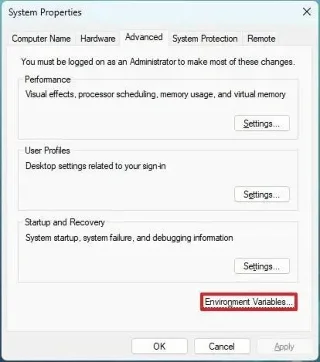
  3. Click the Advanced tab.

  4. Click the Environment Variables button.
    How to create custom environment variables on Windows 11, 10

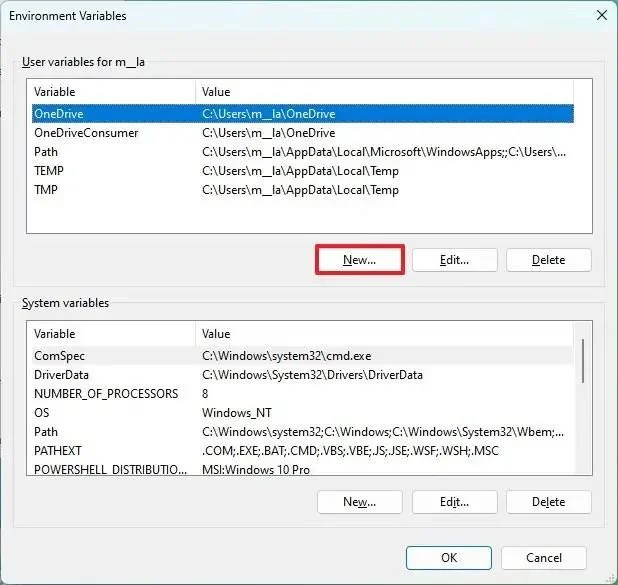
  5. Under the “User variables for admin” section, click the New button.

    How to create custom environment variables on Windows 11, 10

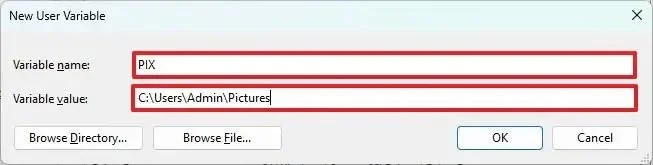
  6. Confirm the name for the variable in the “Variable name” setting. For example, “PIX.”

  7. Confirm the path for the folder, drive, or file to open with the new variable in the “Variable values” setting. For example, “C:\Users\Admin\Pictures.”

  8. Click the OK button.

    How to create custom environment variables on Windows 11, 10

  9. Click the OK button.

Once you complete the steps, the system will create a new variable, and you can use it to access the specific location or file with the variable. For example, you can open the “Run” command, type the variable (%PIX%), and click the “OK” button.

If you want to delete a variable, you can follow the same steps, but in step 4, select the variable and click the “Delete” button.

Leave a Comment

🚨 Крайно решение за грешка в драйвера на филтъра на системния регистър на Windows 11: Възстановете компютъра си за минути!

🚨 Крайно решение за грешка в драйвера на филтъра на системния регистър на Windows 11: Възстановете компютъра си за минути!

Имате проблеми с досадната грешка в драйвера за филтър на системния регистър на Windows 11? Открийте доказани, стъпка по стъпка решения, за да я поправите бързо и да накарате системата си да работи отново безпроблемно. Не са необходими технически познания!

Master Windows 11 Гласово въвеждане: Ръководство за създаване на документи без усилие

Master Windows 11 Гласово въвеждане: Ръководство за създаване на документи без усилие

Открийте как да използвате гласово въвеждане в Windows 11 за документи, за да повишите производителността. Ръководство стъпка по стъпка за настройка, съвети и разширени функции за безпроблемно диктовка.

Windows 7 Serial Key for 32bit/64bit 2021

Windows 7 Serial Key for 32bit/64bit 2021

People now days looking for Windows 7 Serial Key as the OS is old so it is difficult to find a Windows 7 key. Here are the some of the Windows 7 Serial Key.

Как да получите и активирате новия панел с джаджи в Windows 11

Как да получите и активирате новия панел с джаджи в Windows 11

Как да получите и активирате новия панел с джаджи в Windows 11

Добавяне на програма към стартиране в Windows 11: Ръководство стъпка по стъпка

Добавяне на програма към стартиране в Windows 11: Ръководство стъпка по стъпка

Като ежедневен потребител на Windows, имате нужда от определени приложения и програми, които да стартират веднага щом влезете в системата, за да не се налага сами да си правите труда. Windows предлага бърз и лесен...

Как да използвате Windows Copilot за включване на тъмен режим, DND, управление на Bluetooth устройства и други

Как да използвате Windows Copilot за включване на тъмен режим, DND, управление на Bluetooth устройства и други

Какво е важно да знаете Windows 11 Copilot може да превключва между светъл и тъмен режим, да включва DND и Bluetooth и дори да отваря страницата с Bluetooth устройства, за да ги управлява. Уверете се, че сте в Windows Inside…

Как да преоразмерите изображения групово с PowerToys в Windows

Как да преоразмерите изображения групово с PowerToys в Windows

Какво е важно да знаете Помощната програма Image Resizer в инструмента PowerToys на Microsoft ви позволява да преоразмерявате изображения наведнъж. Можете да изберете файловете, които искате да преоразмерите, от „Преоразмеряване на снимки“…

How to enable new header UI for File Explorer on Windows 11

How to enable new header UI for File Explorer on Windows 11

To enable File Explorer header design on Windows 11, open Command Prompt (admin) and run vivetool /enable /id:40950262,41076133 command.

How to create custom environment variables on Windows 11, 10

How to create custom environment variables on Windows 11, 10

To create environment variables on Windows 11 (10), open System Properties > Advanced > Environment Variables, and create new variable.

How to download Spotlight collection desktop images on Windows 11

How to download Spotlight collection desktop images on Windows 11

On Windows 11, you can save the Spotlight collection images available on the desktop, but you have to use this workaround.