On Windows 11, you can clone your device’s hard disk drive (HDD) to a new Solid-State Drive (SSD) using the free version of Macrium Reflect, and in this guide, you will learn how. Macrium Reflect is a robust backup solution that also includes a clone feature similar to Clonezilla. Cloning is the process of making an exact copy of a source hard drive to another hard drive that’s equal or larger in size.
Macrium Reflect is a paid software, but you can use the trial version for cloning when replacing the HDD on your laptop or desktop computer with a new SSD. The feature gives you the ability to migrate your current installation with your settings, apps, and files without the need for reinstallation and reconfiguration.
In this guide, you’ll learn the steps to use Macrium Reflect to clone a hard drive with a Windows 11 installation to another drive.
Important: The company has ended the free version of Macrium Reflect, and with version 8, it’s now offering a 30-day trial to use the software. Although this is not good news, you can still use the solution to clone a drive if you’re in the process of replacing it. I wouldn’t recommend using this product as a long-term backup solution if you won’t be paying for the subscription.
Clone an HDD to SSD using Macrium Reflect
The process of cloning a hard drive to an SSD (or any other kind of drive) using Macrium Reflect requires connecting the new drive to the same device as the old drive, installing the Macrium Reflect app, cloning the drives, and repartitioning the storage as necessary.
Connect clone drive
The first step in the cloning process is to connect the new drive to your device. The steps to connect a traditional HDD, SSD, and M.2 drives will be different per manufacturer and even computer model. As a result, make sure to check your computer manufacturer’s support website for more specific details.
Usually, you can connect a drive using a USB adapter, but you shouldn’t use an external drive as you can’t use it as a boot drive. However, you can use a USB external drive if you intend to use a clone as a backup.
Install Macrium Reflect
To install Macrium Reflect on Windows 11, use these steps:
-
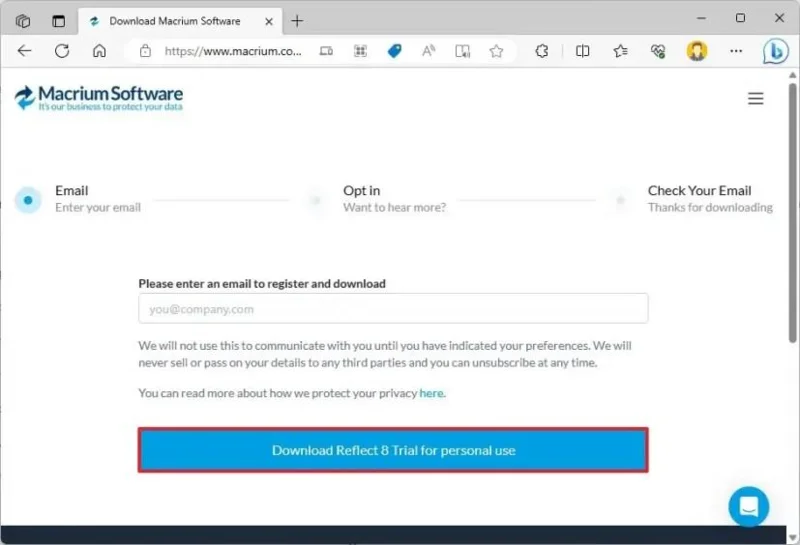
Open Macrium Reflect download page.
-
Confirm your email address.
-
Click the Continue button.
-
Click the “Download Reflect 8 Trial for personal use” button.
-
Open the link you received in the email that was used during the registration process (step 2) to download the installer.
-
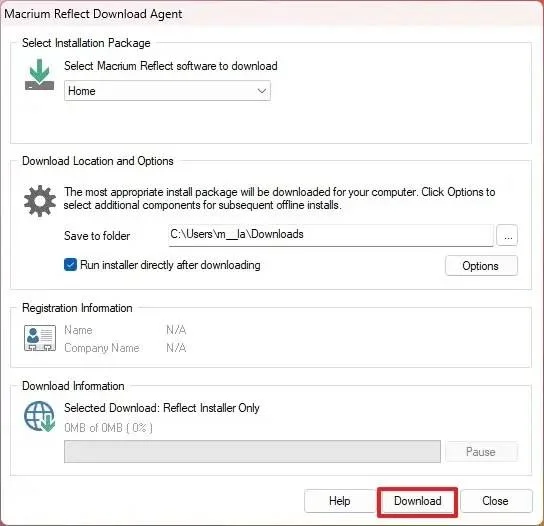
Double-click the ReflectDJHF.exe file to open the download agent.
-
Click the Download button.

-
Click the Next button.
-
Click the Next button again to begin the installation on Windows 11.
-
Select the option to accept the terms.
-
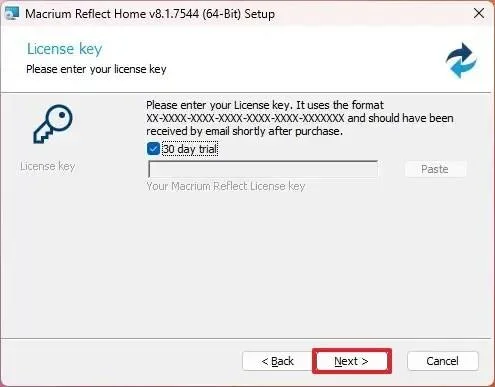
Click the Next button.
-
Click the Next button one more time to accept the trial.

-
Click the Next button.
-
Click the Next button again.
-
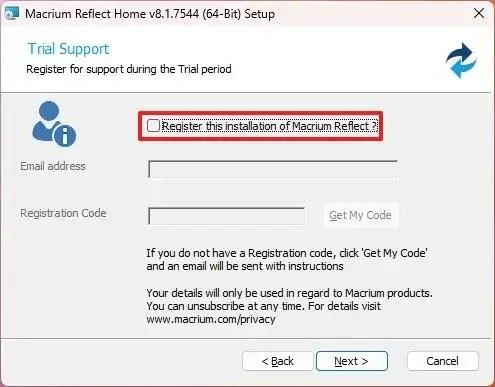
Clear the “Register the installation of Macrium Reflect” option.

-
Click the Next button.
-
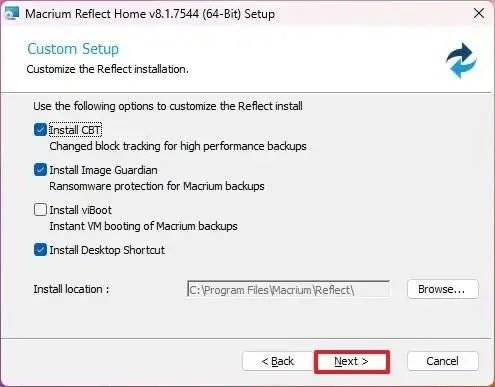
Confirm the custom settings before installation (if applicable).

-
Click the Install button.
-
Click the Finish button.
-
Click the Yes button to restart the device (if applicable).
Once you complete the installation, you can proceed to close the traditional Hard Disk Drive to a Solid-State Drive or M.2 drive.
Macrium Reflect clone drive
To clone two drives using Macrium Reflect on Windows 11, close any running applications and use these steps:
-
Open Macrium Reflect.
-
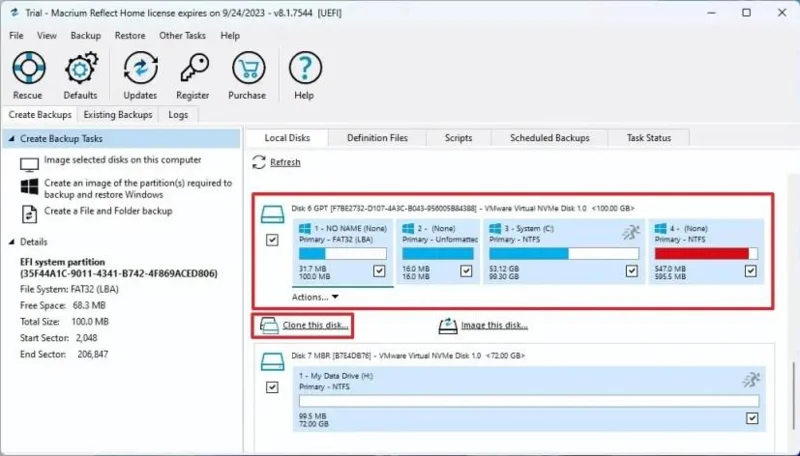
Click on the Create Backup tab.
-
Select the drive to clone on the right side.
-
Click the “Clone this disk” option.

-
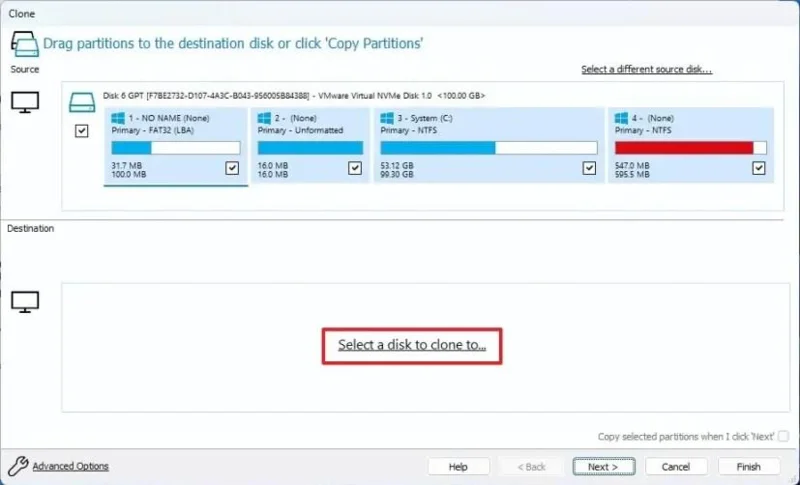
Under the “Destination” section, click the “Select a disk to clone to” option.

-
Select the destination (new) drive, such as a new SSD, M.2, or another HDD.
Quick tip: If the new drive has any partitions, it’s recommended to click on the “Erase Disk” option to clear the contents of the drive.
-
Click the Next button.
-
Click the Next button again to skip the schedule option.
-
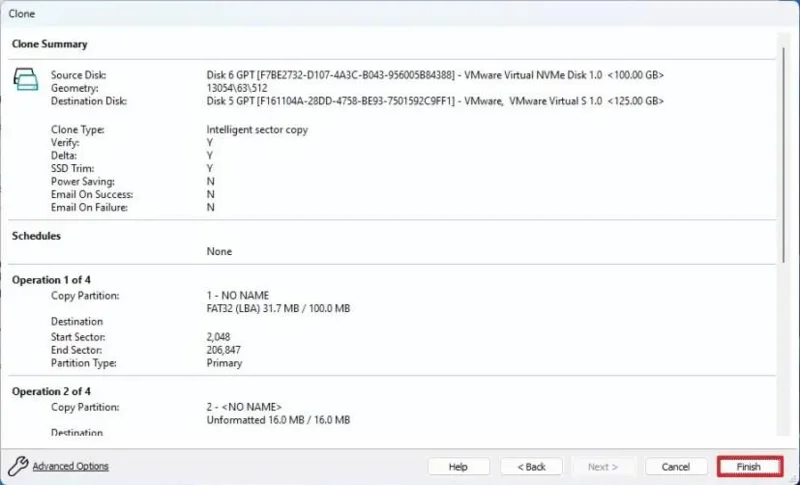
Click the Finish button.

-
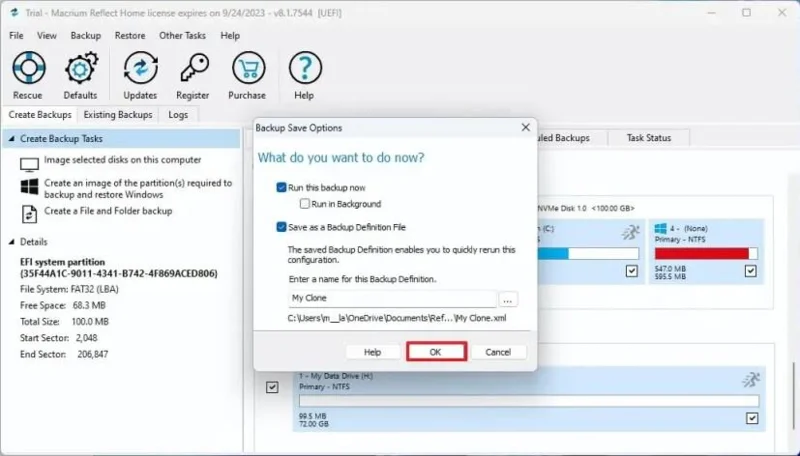
Click the OK button.

-
Click the Continue button.
-
Click the Close button.
After you complete the steps, Macrium Reflect will clone the data from the source to the destination drive on Windows 11. Following the process, replace the old with the new drive on your computer. Or, if this is a backup, disconnect the drive with cloning information and put it in a safe location.
If the new drive has a larger capacity, the storage will have some unlocated space available. However, since the partition layout of Windows 11 includes the recovery partition immediately after the installation partition, you won’t be able to expand the available space to the primary partition.
In this case, you have two options, including creating another new partition with the remaining unallocated space, which you can use to store files, or you can use a third-party tool like GParted to move the recovery partition to the end of the drive, allowing to expand the installation drive to make use of the remaining space.